
Multi-factor authentication (MFA) adds an extra layer of security to online accounts by requiring users to provide more than one factor of authentication before accessing their accounts. This additional security measure helps safeguard sensitive data and prevent unauthorized access.
There are three main factors of authentication:
- Something the user knows: Such as a password or email address.
- Something the user has: Such as a randomly generated code on their smartphone via an authenticator app.
- Something the user is: Such as biometric data like fingerprints or facial recognition.
In the context of our online learning platform, Lt, we use time-based one-time passwords (TOTP). These six-digit codes are randomly generated every 30 seconds and rely on shared secrets stored securely within Lt and the user's chosen authenticator app, such as Google Authenticator or Microsoft Authenticator.
Setting Up Multi-Factor Authentication
Users can set up MFA by navigating to the user menu and selecting ‘Multi-factor authentication’.

Fig. 1: Accessing the Multi-Factor Authentication Setup
To enable MFA, follow these steps:
- Scan the QR code displayed on the screen using your authenticator app or manually enter the provided code.
- Enter your password and the six-digit code generated by your authenticator app into the provided field.
- Click ‘Enable’ to activate MFA.

Fig. 2: Example MFA Setup Modal
Logging In with MFA
When logging in to Lt with MFA enabled, you will be prompted to enter your six-digit TOTP code. If you lose access to your authenticator app, you can use a recovery code by clicking ‘Log in using a recovery code’.
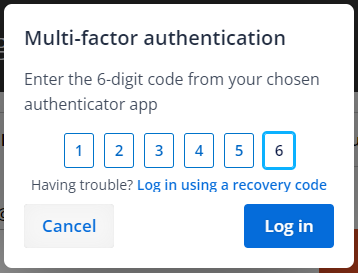
Fig. 3: Entering a TOTP Code for Authentication
Using Recovery Codes
After enabling MFA, you will be prompted to save your recovery codes. These one-time-use codes are an alternative to TOTP and can be used to log in if you lose access to your authenticator app.
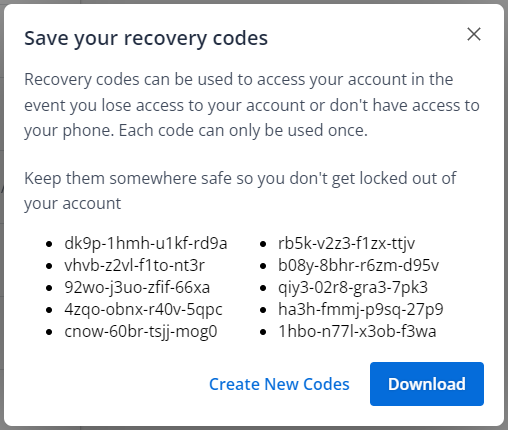
Fig. 4: Example Recovery Codes
It is strongly recommended that you download your recovery codes and store them securely, such as in a password manager. Once logged in with a recovery code, you can disable MFA or generate new codes if required.
Note: The QR code and manual setup code displayed during the initial setup are only shown once. Be sure to complete the setup process carefully.